
YouTube Transcript Downloader: Get Video Text with Timestamps
Retrieve, copy, and download transcripts from supported public YouTube videos. Get free TXT files with or without timestamps, or export subscriber-only SRT subtitles in 40+ languages.
Trending Videos

How to Make Stress Your Friend | Kelly McGonigal | TED
TED

Everything you think you know about addiction is wrong | Johann Hari | TED
TED

Sleep Is Your Superpower | Matt Walker | TED
TED

How childhood trauma affects health across a lifetime | Nadine Burke Harris | TED
TED

The Brain-Changing Benefits of Exercise | Wendy Suzuki | TED
TED
More summary tools
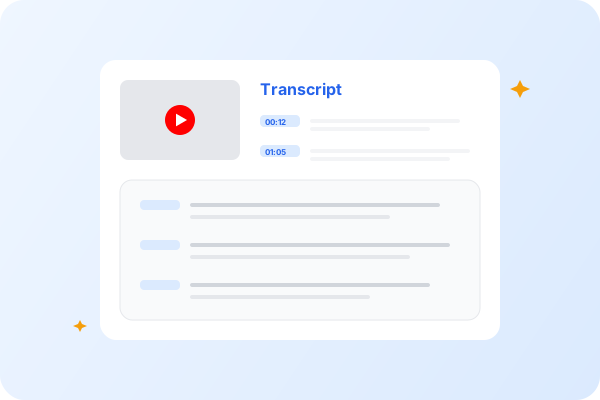
What Is a YouTube Transcript Downloader?
A YouTube Transcript Downloader turns an accessible video transcript into a file or clean block of text that is easier to search, quote, edit, and archive. Instead of opening YouTube's transcript panel and copying captions segment by segment, you can retrieve the ordered text, keep useful timestamps, and choose a format that matches the next task. It works best with public videos that already provide a usable caption or transcript track.
NoteAI keeps the source video central to the workflow. A downloaded transcript helps you scan a long lecture, podcast, interview, webinar, or tutorial, but it does not guarantee that every word is correct. Use timestamps to verify names, numbers, quotations, and specialist terms. You can download TXT for free, copy clean text to another tool, or use a subscription to export SRT for subtitle workflows.
Why Use NoteAI's YouTube Transcript Downloader?
Download a Complete YouTube Transcript
Turn an accessible YouTube caption track into readable text without copying one caption at a time. NoteAI keeps the transcript in order so you can review a lecture, interview, podcast, tutorial, or webinar as a document.
Keep Useful Timestamps
Choose text with timestamps when you need to return to a specific moment in the video. Time references make quotations, research notes, editing decisions, and team reviews easier to verify against the source.
Work Across 40+ Languages
Retrieve supported transcripts in more than 40 languages and select the language that fits your workflow. Results depend on the caption or transcript tracks available for the public video.
Copy or Export for the Next Step
Copy clean text to your notes or download a file for editing, subtitles, research, and content planning. Direct TXT downloads are available without an account; SRT exports require an active subscription.
How to Download a YouTube Transcript in 3 Steps
Paste an accessible YouTube link, retrieve the available transcript, then copy it or download TXT and subscriber-only SRT.
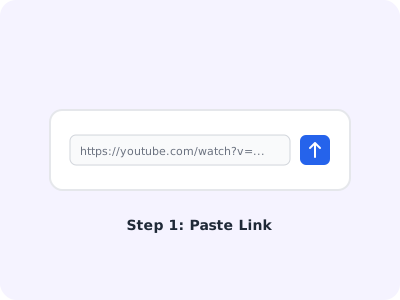
Paste a Public YouTube Link
Copy the URL of a public or otherwise accessible YouTube video and paste it into NoteAI. Videos that are private, removed, age-restricted, region-blocked, or missing an accessible transcript may not work.
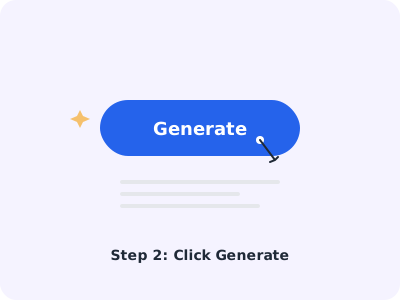
Retrieve the Transcript
Choose an available transcript language and let NoteAI load the text in sequence. Review the result beside the video and use timestamps to return to sections that need more context.
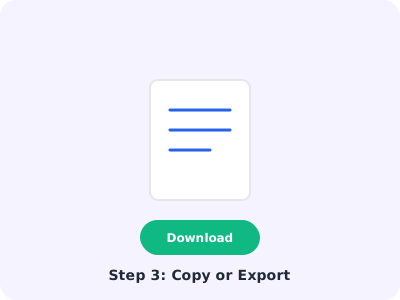
Copy or Download TXT and SRT
Copy the clean text, download TXT with or without timestamps, or choose SRT when your subscription includes subtitle export. Check critical names, numbers, and quotations before reusing them.
Supported YouTube Transcript Download Formats
TXT with Timestamps
Download a plain-text file that preserves the time shown for each transcript segment. This format is useful when you need searchable notes and a quick way to locate the matching passage in the video.
Clean TXT or Clipboard Copy
Remove timestamps for a cleaner reading experience, then download the transcript as TXT or copy it directly. Use it as a starting point for study notes, briefs, outlines, and searchable archives.
SRT Subtitle File
Export time-coded SRT when you need a subtitle file for an editing or publishing workflow. SRT download is a subscriber feature and may still require manual timing and terminology checks before publication.
PDF-Ready Workflow
The transcript menu currently downloads TXT and SRT rather than a direct PDF. Copy the clean transcript into your preferred document editor when you need to format, print, or save the text as a PDF.
Ways to Use a Downloaded YouTube Transcript
Turn public video speech into searchable source material for study, production, and team review while keeping a path back to the original context.

Students and Researchers
Search lectures, conference talks, documentaries, and interviews as text. Preserve timestamps for citations and return to the source before relying on a quotation, statistic, or technical explanation.

Creators and Editors
Prepare a rough subtitle track, find quotable moments, and turn spoken material into a content brief. Review the transcript for timing, speaker changes, spelling, and context before publishing it.

Professionals and Teams
Create searchable records from public webinars, product demos, training videos, and industry conversations. Share relevant passages while keeping a timestamped route back to the original recording.
Tips for a Better YouTube Transcript Download
Start with Accessible Captions
Use a public video that has a transcript or caption track in the language you need. Availability is controlled by the source video, so a different language may appear only when the uploader or YouTube provides it.
Keep Timestamps for Verification
A timestamped TXT file takes slightly more space but makes fact-checking much faster. Keep it for research, quotations, editorial review, or any workflow where source context matters.
Review Names and Technical Terms
Captions can mishear names, acronyms, numbers, and specialist vocabulary. Compare important passages with the video before citing, publishing, translating, or turning them into subtitles.
Choose the Format for the Job
Use clean TXT for reading and analysis, timestamped TXT for source navigation, and SRT for subtitle software. Copy the transcript into a document editor when you need a designed PDF.
Download a YouTube Transcript for Free
Paste a supported public video link to retrieve the text, keep useful timestamps, and download a TXT file without signing up.
Only Need the Key Points?
Use the full transcript when every detail matters. When you need a faster overview first, continue with NoteAI's YouTube AI Summarizer and return to the timestamped text for verification.