
Free YouTube Video Downloader
Paste a YouTube video link, choose an available format and quality, and save the file to your device. Video downloads at 1080p and above require a subscription.
Enter a YouTube URL to download video or audio in various formats.
Make sure your downloads do not infringe the rights of others.
This tool cannot download copyrighted music.
How to Download and Save YouTube Videos
Use the YouTube video downloader to turn a video link into an available download in three steps.
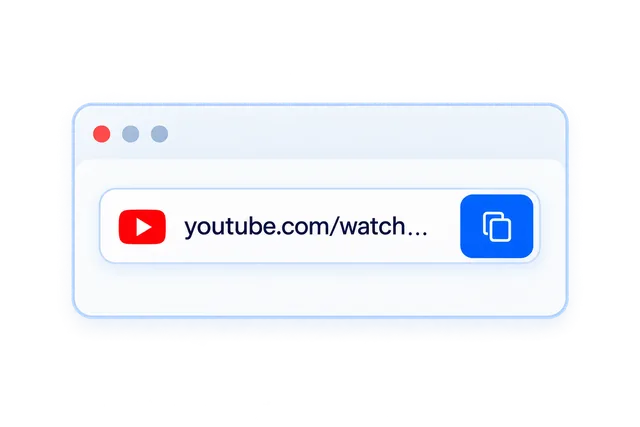
Step 1: Copy and Paste a YouTube Link
Copy the video URL from your browser or YouTube’s Share menu, then paste the complete link into the input box.
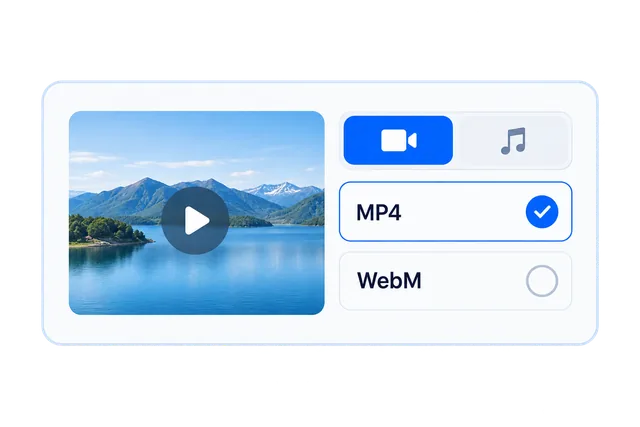
Step 2: Choose a Format and Quality
Parse the link and compare the available formats, resolutions and file sizes. Video downloads at 1080p and above require a subscription.
Step 3: Download and Save Your Video
Choose an available download option and save the file. If your browser opens a player, use its save option when available; see the FAQ for device-specific help.
Paste a YouTube Link to Download
Use NoteAI as a YouTube link downloader: copy a video URL, paste it into the input box, and select an available download option.
On the YouTube video page, copy the address from your browser or choose Share and Copy link. Paste the complete URL, then parse it to view the video’s available files.
Video URL examples — replace VIDEO_ID with the video’s ID
https://www.youtube.com/watch?v=VIDEO_IDhttps://youtu.be/VIDEO_ID
If the link fails, check that it is complete and the video is accessible. Private, age-restricted or region-restricted videos may be unavailable. If a download link expires, paste the original YouTube URL and parse it again.
Choose a Video or Audio Format
Compare the formats you may see after parsing a YouTube URL. Choose from the options actually returned for that video.
| Format | Content | Quality | When to choose it |
|---|---|---|---|
| MP4 | Video | Resolution shown in the results, such as 720p or 1080p when available. | Choose an MP4 video file for a device or player that supports it. |
| WebM | Video or audio, depending on the result | Resolution for video; bitrate for audio, when provided. | Choose WebM when your device or player supports the returned file. |
| MP3 | Audio, only when offered | Audio bitrate shown in the results; no video resolution. | Choose an MP3 file if it is available and you only need audio. |
MP4
- Content
- Video
- Quality
- Resolution shown in the results, such as 720p or 1080p when available.
- When to choose it
- Choose an MP4 video file for a device or player that supports it.
WebM
- Content
- Video or audio, depending on the result
- Quality
- Resolution for video; bitrate for audio, when provided.
- When to choose it
- Choose WebM when your device or player supports the returned file.
MP3
- Content
- Audio, only when offered
- Quality
- Audio bitrate shown in the results; no video resolution.
- When to choose it
- Choose an MP3 file if it is available and you only need audio.
YouTube Download 4K: Available Formats and Quality
To download YouTube videos in 4K, paste a video link and check the available resolutions. Choose a 4K option when it appears in the results. Availability depends on the source video, and downloads at 1080p or above require an active subscription.
Available formats and quality depend on the source video and parsing results. MP3 is not available for every video; other audio formats may be returned. Changing a file extension does not convert its format.
Video downloads at 1080p and above require an active subscription. This table does not guarantee a particular format or resolution for every link.
For a specific format, explore:YouTube MP4 ConverterYouTube to MP3 Converter
Save YouTube Videos to Your Device
NoteAI works as an online YouTube saver: choose an available file, download it, and save it to your device for later use. The save location depends on your browser and device.
Windows and Mac
Open your browser’s downloads list to find the saved file or its folder. If a player opens instead, use Save video as or Save link as when available. Check the file format if it will not play.
iPhone and iPad
In Safari, check the downloads list and the Downloads folder in Files. Use Share > Save Video to add a supported video to Photos when that option is available. A download does not always appear in Photos automatically.
Android
Check your browser’s downloads list or the Downloads folder in your file manager. Open the saved video with a compatible player. The exact folder and menu names vary by browser and device.
Frequently Asked Questions
Yes. Use YouTube Transcript Downloader to copy the video text or download TXT with or without timestamps. Transcript availability depends on the video and your plan. AI transcription may require credits or a subscription; SRT export requires an active subscription.
Please to submit a takedown request. Include the relevant links and proof of ownership.